Configure SBC Communication Mode
You can determine the method that is used by User Management Pack 365 to communicate with SBC devices including Autodiscovery, Websocket, direct connection or by using a custom address. Following the wyUpdate upgrade, the SBC communication path is automatically set to Direct connection (Fqdn).
| ➢ | Do the following: |
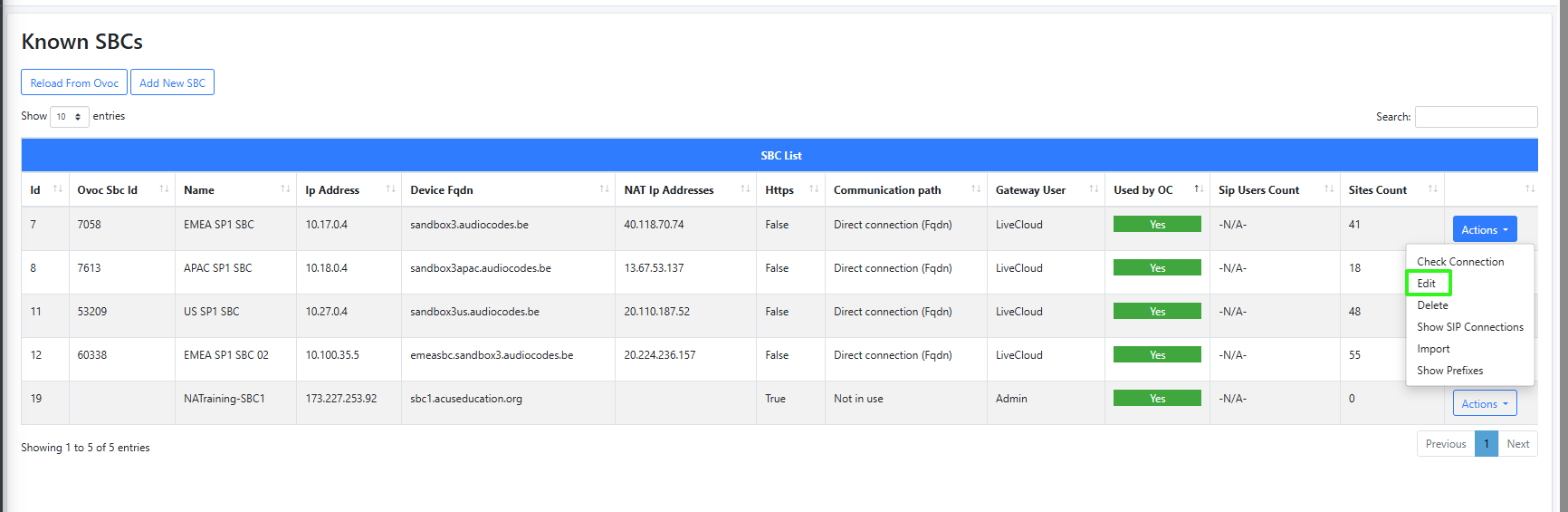
| 1. | In the Known SBCs page, select an SBC device, and then from the Actions drop-down, select Edit. |
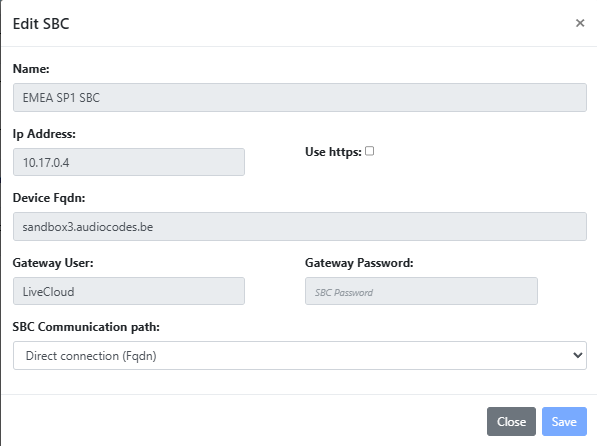
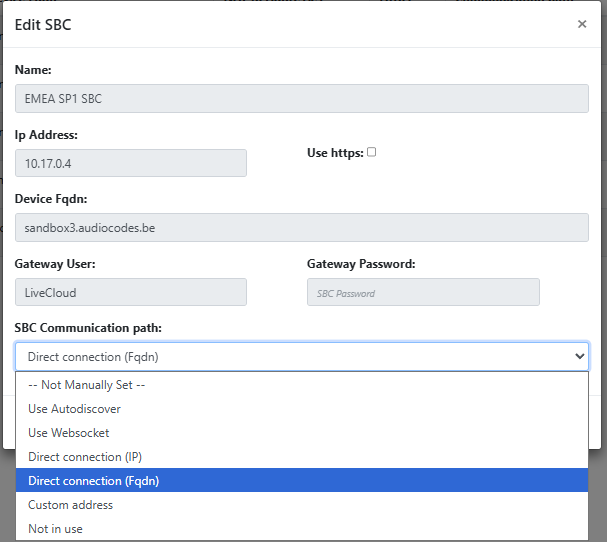
| 2. | From the SBC Communication path drop-down, choose the relevant value according to the table below. |
|
Parameter |
Description |
||||||||||||||||||||||||||||||
|---|---|---|---|---|---|---|---|---|---|---|---|---|---|---|---|---|---|---|---|---|---|---|---|---|---|---|---|---|---|---|---|
|
Direct connection (FQDN) |
Connect to Live Platform server directly by configuring the FQDN Public IP address of the SBC device. After wyUpdate upgrade, the SBC communication path is automatically set to Direct connection (FQDN), which is received from Live Platform. |
||||||||||||||||||||||||||||||
|
Direct connection (IP) |
Connect to |
||||||||||||||||||||||||||||||
|
Use Autodiscover |
Automatically determines the best communication path in the following priority:
|
||||||||||||||||||||||||||||||
|
Use Websocket |
Connect to the SBC through Websocket tunnel, routed via
|
||||||||||||||||||||||||||||||
|
Custom address |
Connect to |
||||||||||||||||||||||||||||||
|
Not in Use |
- |
||||||||||||||||||||||||||||||
|
Not Manually Set |
- |